Billing Setting
Autoload
Enabling the Autoload feature will automatically reload tokens into your virtual wallet when your balance falls below a specified token threshold so you don’t miss any action. Update your Autoload preferences by following the instructions below.
Note: Any pricing shown in the images are for illustrative purposes. To get actual pricing, please visit the website order page.
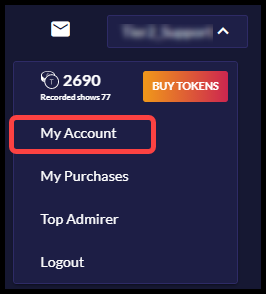
1. To enable Auto load, click your handle in the top right corner and click on “My Account.”
2. On the left column menu, click on “Billing / Setting” and select “Autoload.”
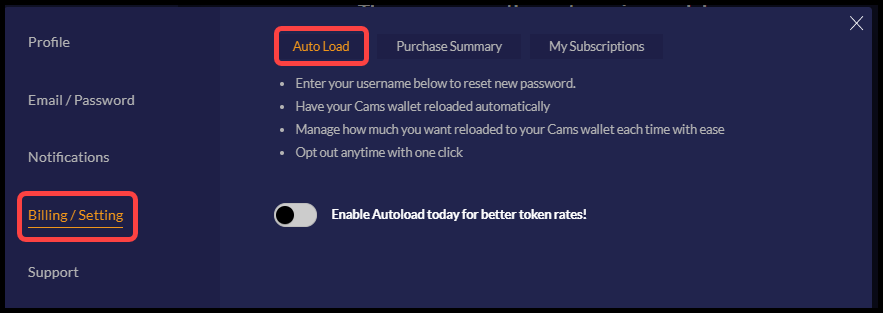
3. Click the toggle button to “Enable Autoload today for better token rates!”
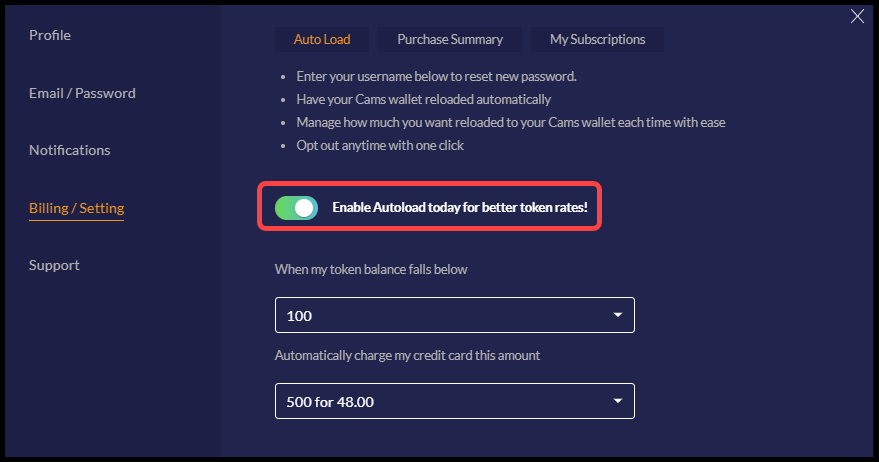
4. Change or update your default amount preferences or uncheck the toggle button to disable this feature.
Purchase Summary
1. To view your purchase summary, click your handle in the top right corner and click on “My Account.”
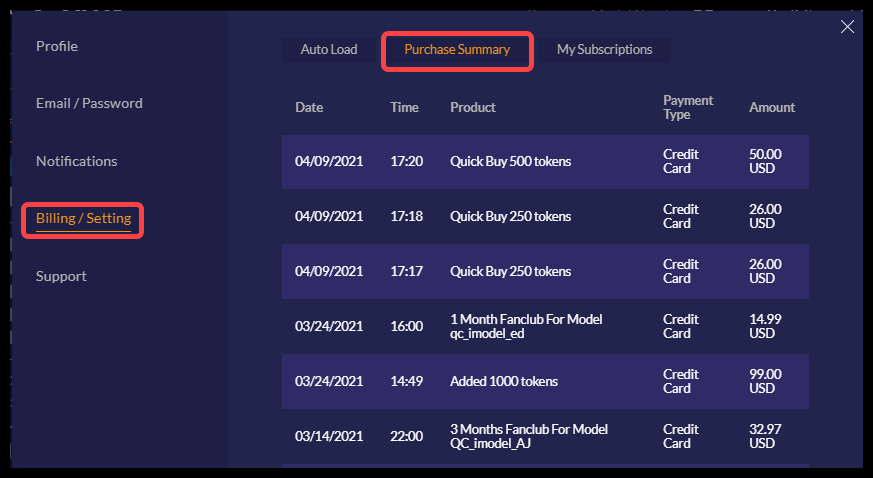
2. On the left column menu, click on “Billing / Setting” and select “Purchase Summary.”
My Subscriptions
1. To view your subscriptions, click your handle in the top right corner and click on “My Account.”
2. On the left column menu, click on “Billing / Setting” and select “My Subscriptions.”
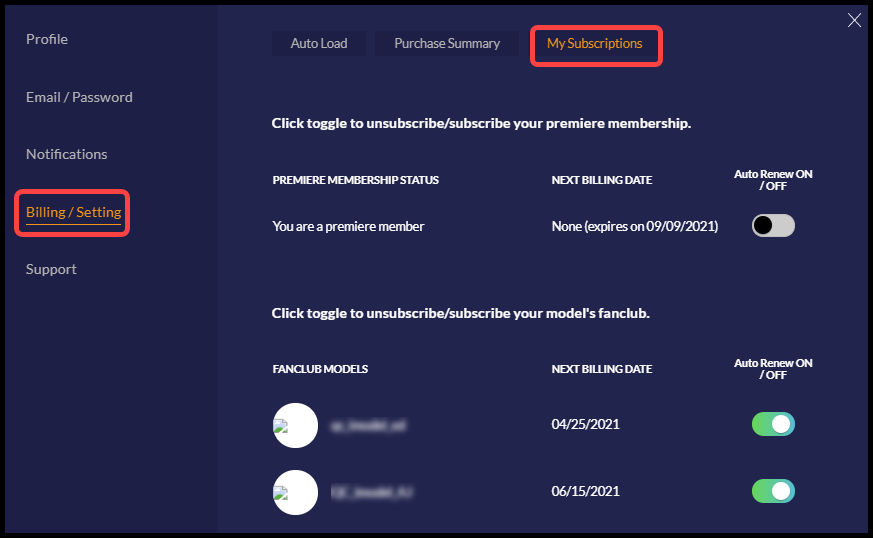
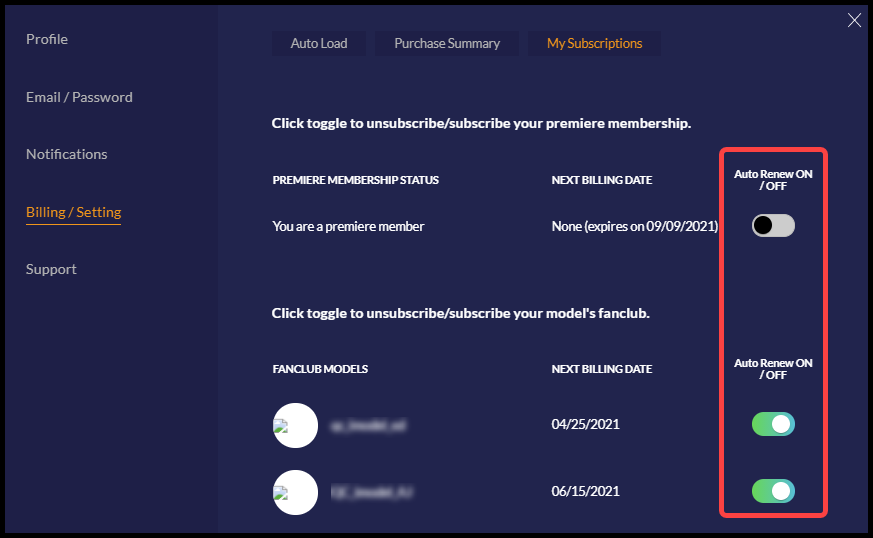
3. Click on the toggle next to the subscription to turn auto-renewal on or off. When auto-renewal is turned on the toggle will turn green.